Space Setup for Sozo Tower Defense Mixed Reality
Step-by-step help for Space Setup before playing Sozo Tower Defense in mixed reality on Quest, plus what to do when portals or the path look wrong.
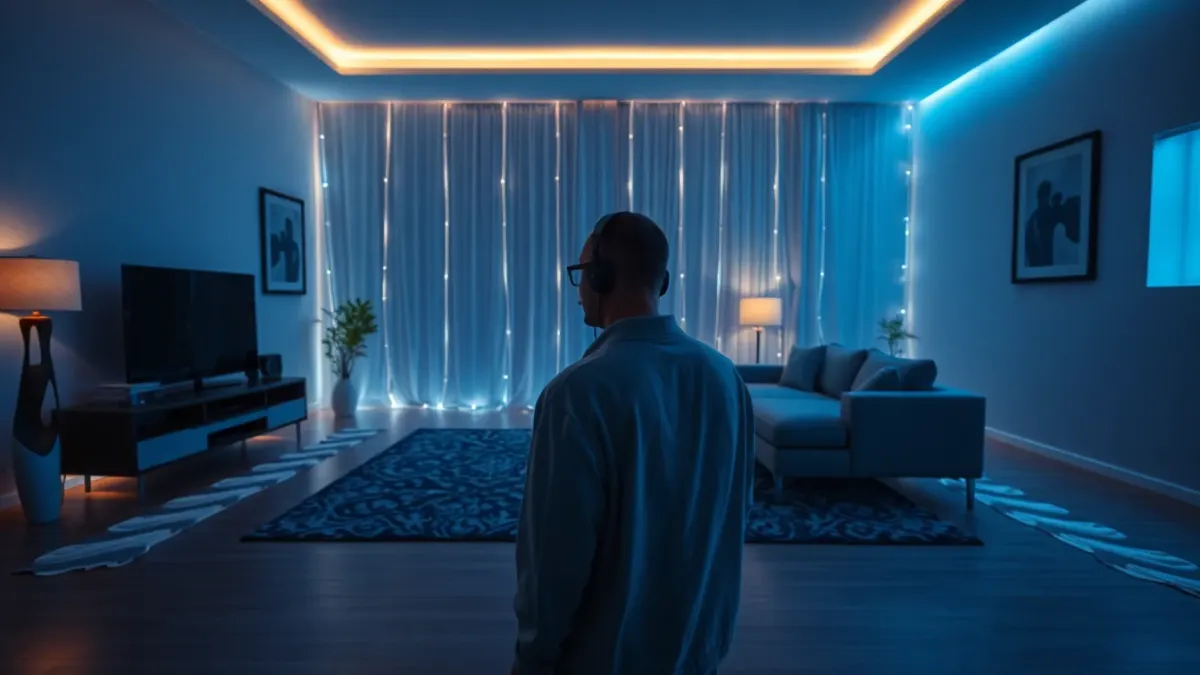
If monsters are marching across your floor in the wrong place, or portals refuse to open in your walls, the cause is almost always the room data. Here is how Space Setup fits together with Sozo Tower Defense, written for anyone doing mixed reality for the first time.
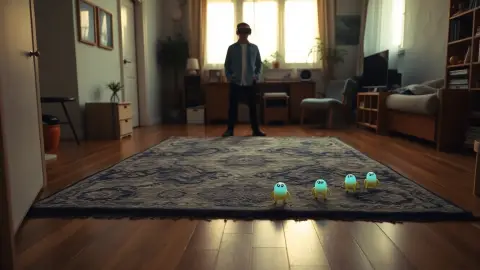
According to the Sozo support page, the flow is: run Space Setup on your headset so it knows your walls, floor and furniture, then choose mixed reality in the game. Sozo then opens enemy portals in your real walls and lays the path across your real floor.
What Space Setup does
Space Setup is a Quest system feature, not part of Sozo. The headset scans your surroundings and stores the layout of walls, floor and furniture. Games that use mixed reality can then use that data. Menu names and steps can change with system updates, so look in your headset's settings for the Space Setup or room setup entry rather than relying on exact button names.
Before you scan
- Turn the lights on. A bright, evenly lit room scans better than a dim one.
- Tidy the floor. Remove clutter and loose items you do not want in the layout.
- Open doors and curtains as you normally keep them. The scan should match how the room looks during play.
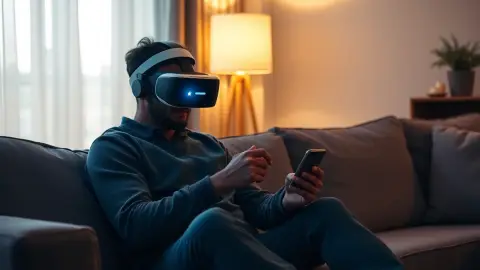
- Put the headset on and look around slowly. Fast head movement gives sloppy results.
Running the setup
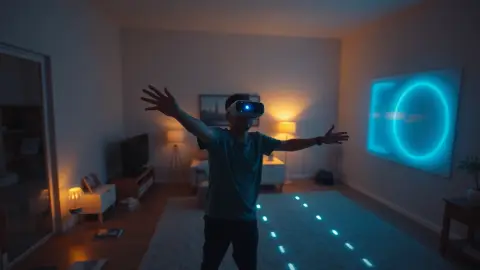
Follow the headset's on-screen prompts. Generally you will look at the walls, floor and ceiling, and mark or confirm furniture where asked. Take your time and do not leave gaps.
Start Sozo in mixed reality
Launch Sozo and choose mixed reality. If the game asks you to confirm your room, do that. The privacy policy explains that the game stores the identifier and name of the room you last confirmed for mixed reality locally on your headset. That is how it remembers which room to use.
When something looks wrong
- Portals in odd places: your scan may be incomplete. Re-run Space Setup.
- Path crossing furniture strangely: mark furniture properly during setup.
- You moved things around: the support page says to re-run Space Setup and confirm the room again in the game.
- Passthrough looks fine but nothing spawns: check that you picked mixed reality rather than VR in the game.
Privacy of your room data
Your room layout is processed on the headset, in real time, only for gameplay, and never transmitted to the developer. The game does not access, record or store passthrough camera images; the headset system composites them. If you want to remove your layout, the privacy policy says you can delete it in your headset's Space Setup settings.
Headset requirements
VR mode runs on Quest 2, Quest Pro, Quest 3 and Quest 3S. Mixed reality looks best with the colour passthrough on Quest 3 and 3S. Read more on the Sozo page.
You can buy the game on the official Meta store page.
Small details that help
Try scanning when the room is at its tidiest, and walk slowly. Avoid reflective surfaces being the main thing in view, as mirrors and glass can confuse room scans. If the scan struggles, add light and try again from another angle. Name the room clearly if the system allows it, so you can recognise the right layout in the game. Patience here pays off every session afterwards.
FAQ
Do I need Space Setup to play Sozo Tower Defense?
For mixed reality, yes: the game uses your walls, floor and furniture. VR mode places you in a fantasy world instead.
How often should I re-run Space Setup?
Whenever you rearrange the room, then confirm the room again in the game.
Does Sozo record my room?
The privacy policy says room data stays on the headset, is used only for gameplay and is never sent to the developer.
Why does mixed reality look better on Quest 3?
Quest 3 and 3S have colour passthrough, which makes your real room look clearer behind the game.