Arena Not Lining Up With Your Room? Quest Fix Guide
Tank Avenger arena floating or offset from your table? Follow this step-by-step Quest fix: refresh Space Setup, restart the game and check your lighting.
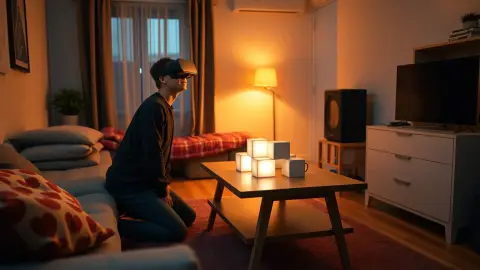
You launch the game, look down, and the arena is floating a hand's width above the floor, or the walls are somewhere in the next room. Annoying, but fixable. This is the single most common mixed reality complaint, and the Tank Avenger: Mixed Reality support page covers it directly. Here is a fuller walkthrough of how to fix an arena not lining up with your room.
The official answer
The support FAQ for this problem says: make sure your headset has an up-to-date room setup (Space Setup on Meta Quest) with the floor, walls and furniture captured. Re-run the room setup if you moved furniture, then restart the game so it re-reads the room layout. Everything below expands on that.
Step 1: Think about what changed
Did you move the sofa, rearrange the coffee table, switch rooms or have a big furniture delivery? Any of those makes the saved room layout stale. Even small moves of a table you use as an arena can throw things off.
Step 2: Refresh the room setup
- Clear the floor and tidy the space.
- Turn the lights on; a dim room makes capture harder.
- Open your headset's room or space setup and run it again.
- Capture the floor, the walls and the furniture you want the game to use.
- Check the result before you finish.
Exact menus differ across system versions, so follow the headset's on-screen prompts.
Step 3: Fully restart the game
This is the step people skip. The game reads the room layout when it starts, so re-scanning while the game is open won't help. Close the game completely and relaunch it.
Step 4: Check the environment
If it still looks wrong:
- Lighting: brighten the room and avoid strong glare from windows.
- Reflective surfaces: large mirrors and glass confuse camera systems.
- Clutter: piles of items on the floor can muddy the capture.
- Moving objects: don't scan while others walk through the space.
Step 5: Restart the headset
A plain restart fixes surprisingly many odd behaviors. Also check for pending system updates, since mixed reality features are improved in updates.
When it's your furniture
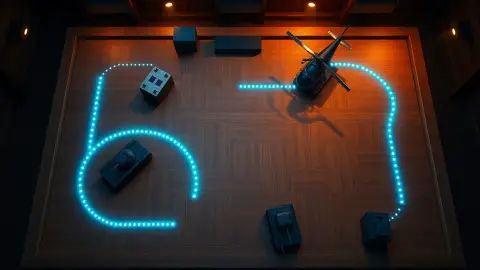
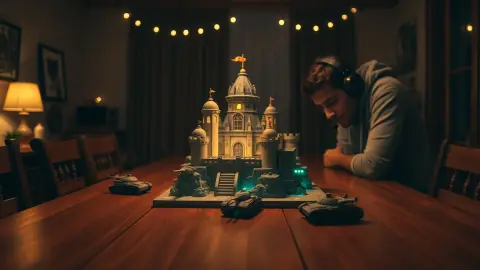
If you changed a table's position permanently, rescan. If it's a temporary shift, move it back to where it was scanned. For custom battlefields made with the Level Builder, remember they were designed around the room as it was when you built them; if the room changed a lot, rebuild.
Still not working?
Contact the developers via the support section on the Tank Avenger page, and mention your headset model, what you changed and what you see. Remember the game relies on the headset's mixed reality features: it needs passthrough to work.
Prevention
Pick a scan routine you repeat whenever the room changes, and don't be tempted to skip it. A minute of rescanning beats ten minutes of frustration.
Log what you tried
If you end up contacting support, a short list of what you tried makes their job easier and gets you an answer sooner. Note whether you rescanned, restarted the game, restarted the headset and updated software. Mention if the arena is offset, tilted or floating, because each hints at a different cause.
A photo of the real room's layout isn't necessary, and you should be careful about sending images of your home. A written description is usually enough for the developers to work with.
Why restarting really helps
It can feel like a magic trick, but the logic is simple: the game reads the room layout when it launches. If the layout changes while it is running, the game may keep the old picture in its head. A restart gives it a fresh read. That is why the support guidance pairs a new room setup with a full restart of the game.
FAQ
Why is the arena floating above my floor?
Usually the room setup is out of date or the floor wasn't captured accurately. Rescan and restart the game.
Do I have to restart the game after rescanning?
Yes. The support page says to restart so the game re-reads the layout.
Could lighting cause misalignment?
It can affect capture quality, so scan in a well-lit room.
Will rescanning delete my progress?
Progress is stored locally in the game, separate from your room setup, so a rescan shouldn't touch it. Uninstalling the game does remove it.