Rearranged Your Room? Redo Space Setup for Laser Thief
Moved the sofa or switched rooms? Why you should redo Space Setup and restart Laser Thief on Quest 3 so beams and loot match your new layout.
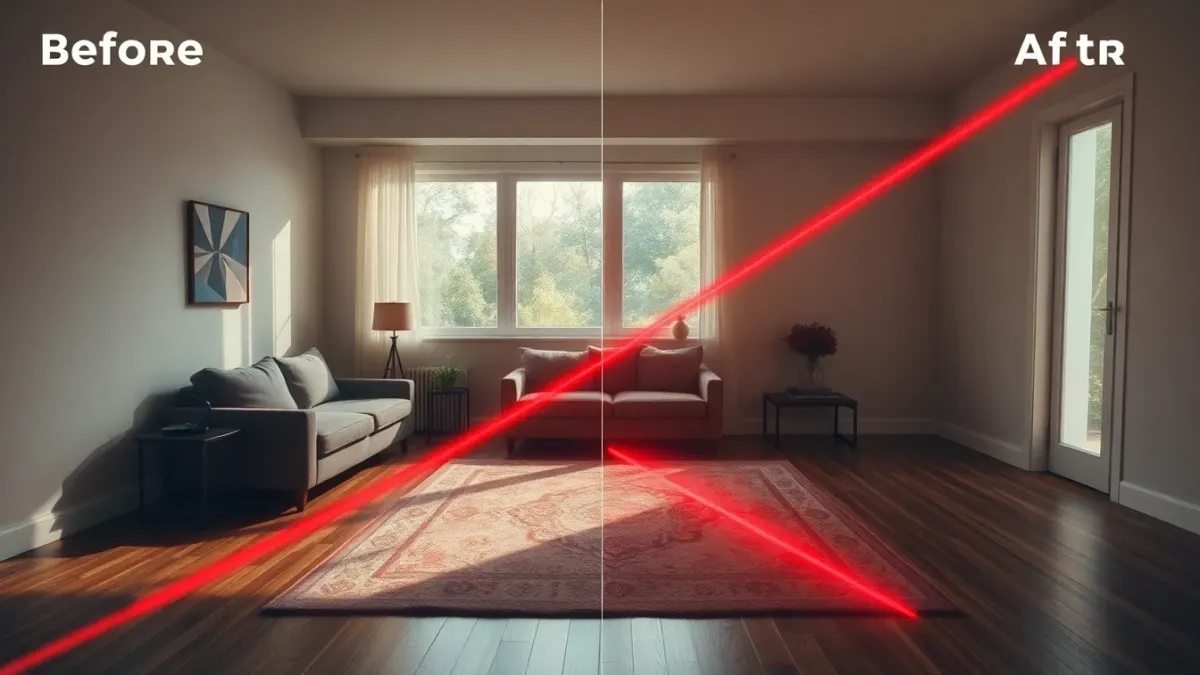
You pushed the sofa against the wall to make space, swapped the coffee table for a mat or carried the headset into a bedroom. Perfect for playing, but your headset still remembers the old room. If you do not redo Space Setup after moving furniture, Laser Thief may place beams and loot where the sofa used to be.
Why the game needs the new layout
The game page says you run Space Setup once and the game maps beams and loot to your real walls and furniture. The support FAQ adds the practical rule: make sure your headset has an up-to-date room setup that includes the floor, walls and large furniture, re-run the setup if you rearranged the room, then restart Laser Thief so it reads the new layout.
That is the whole fix, and it works for most "something is off" moments.
When to redo it
- You moved large furniture or removed it.
- You are playing in a different room.
- You reorganised for more space, such as the approach in playing in a small room.
- Lasers look offset, or loot floats in odd places. See lasers not lining up.
- The headset's boundary no longer matches your real play area.
You don't need to redo it for small items like a cushion or a bag, though you should still clear the floor.
Step by step
- Rearrange first, then scan. Finish moving furniture before you start.
- Clear the floor. Follow the safe clearing guide.
- Light the room. See lighting for Quest 3.
- Open your headset's Space Setup and scan the floor, walls and large furniture. The Space Setup walkthrough has the details.
- Check the result in passthrough. Do the walls and furniture match?
- Restart Laser Thief completely.
- Play a relaxed Free Play level to confirm that beams sit correctly.
Common mistakes
- Scanning before the room is final. You move a chair afterwards and the scan is stale again.
- Forgetting to restart the game. The game reads the layout on start.
- Scanning in a different light than you play in. Aim for similar lighting.
- Skipping large furniture. The setup should include sofas, tables and shelves.
- Leaving a mirror uncovered, which can confuse camera-based tracking.
Multiple rooms
If you play in several rooms, you will need to keep each room's setup accurate. Check your headset's settings for how it handles multiple spaces, as menus vary by software version. We keep to general terms here because the system changes over time.
Privacy angle
The room layout is processed on the headset. The game's privacy policy says it does not record, store or transmit passthrough images or your room layout. See Laser Thief and room data.
Quick recap
New layout, new scan, restart the game. Two extra minutes can save a whole evening of confusing lasers.
When you are set, head back to the Laser Thief page or straight into the heist.
A quick sanity check before you commit to a layout
If you are shuffling furniture mainly to make room for the game, it is worth deciding on one "play layout" and sticking to it. Each time the sofa moves back and forth, the saved room goes stale, and every stale scan is another small chance of beams landing in odd places.
A simple approach is to pick the arrangement that gives you the clearest square, scan it once, and note roughly where the big pieces sit. If you have to restore the room for guests, you can do it knowing that the next play session simply needs a fresh scan. Treat the scan as part of putting the room into "heist mode", not as an annoying chore.
FAQ
Do I have to redo Space Setup if I move furniture?
Yes, the developers advise re-running it if you rearranged the room, then restarting the game.
Do I need to restart Laser Thief afterwards?
Yes. Restart so the game reads the new layout.
Does the headset remember multiple rooms?
That depends on your headset software and settings. Check Meta's current documentation.
What if lasers are still off after redoing it?
Check lighting, clean the cameras, cover mirrors and try again, or contact the developers.